
Acctivate News
Built For

Form Defaults for Inventory Transactions
Acctivate includes a variety of inventory transactions designed to help you manage your business accurately. While these transactions are very similar, each one contains different information and, in some cases, follows a different workflow. As a result, you may want a different default form for certain transactions, or prefer more control over when you print, preview, or skip a form altogether.
Default Forms and Print Options
Default forms and their print options can be found on the Forms page in the Inventory section of the Configuration Manager. Inventory transactions can have multiple forms associated with them, with one form being designated as the default form. Furthermore, a default Print Option can be selected, based on the form.
Transaction Processing Forms – The following forms are used as part of the processing of the transaction and are available to be printed before posting.
- Assembly Work Order
- Count Sheet
- Transfer Worksheet
These forms have a Preview or Print default Print Option. When set to Preview, clicking the print button on the transaction will generate an on screen preview which you can then review and export or print. When set to Print, clicking the print button on the transaction will send the form directly to the computer’s default printer without the previewing step.
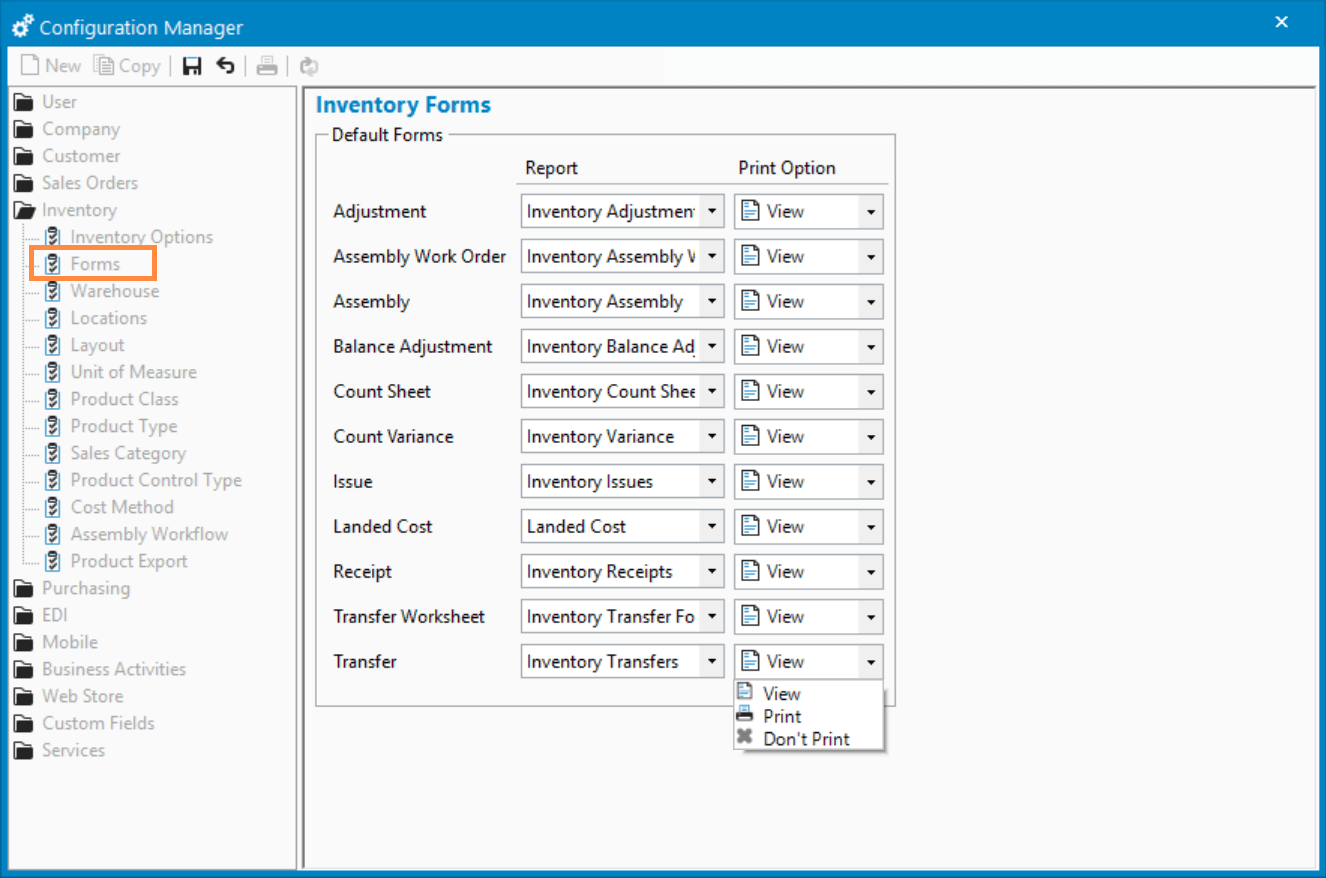
All other forms are available to print before or after posting the transaction. These forms have a Preview, Print, or Don’t Print default Print Option used when posting the transaction. The Preview and Print options behave the same as the forms mentioned above while the Don’t Print option will bypass printing or previewing forms all together when you post the transaction.
Override Print Defaults
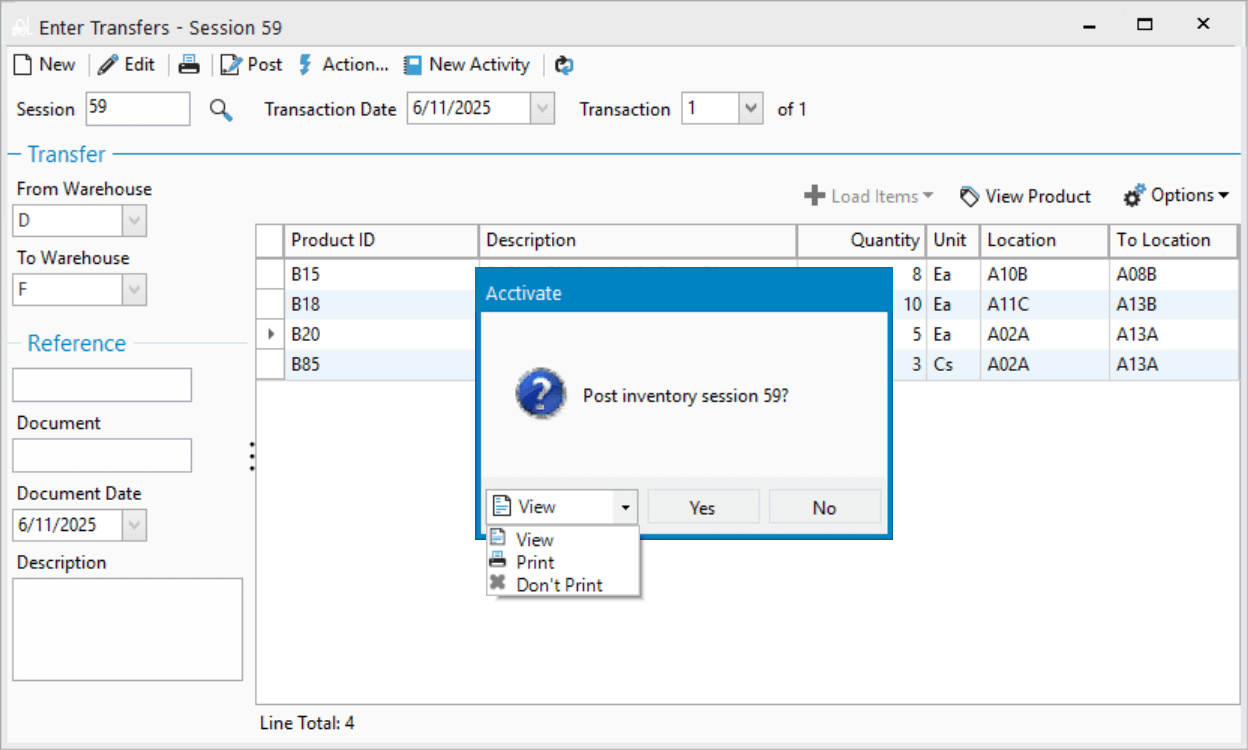
The default Print Options are used when posting an inventory transaction, but you have the option to override them at the time of posting.
For example, the default Print Option for an Inventory Transfer may be Preview, however for a particular Transfer you may not feel the need to Preview or Print the form. In the Post dialog window you’ll be able to override the Print Option, skipping the Preview or Print.

Related Posts
-
Version 16 Available!
Acctivate Version 16 is available for download! Be one of the first to get your hands on exciting new features and changes, including:
-
Acctivate Query – Turn Raw Data into Answers You Can Use
Every business runs on data, but not every question you have fits neatly into a pre-built report. Maybe you need last quarter’s invoice totals broken…
-
Expanded Support for QuickBooks Online Custom Fields
Your Custom Fields, Perfectly Synced, Now Without Limits Every business tracks the details that matter most to them, whether that’s a sales rep, a project…
Call us at 817-870-1311