
Inventory Receipt for Lot Numbers Split/Product Break Down

In this article

Full training library
Inventory Receipts are most commonly used to receive products associated with a purchase order. However, there are situations where a standalone Inventory Receipt is required, such as adjusting lot numbers or converting one product into others.
When using an Inventory Receipt for internal inventory adjustments like these, the session total should always net to $0.00.
- If the session contains a single transaction, you can verify the total in the bottom-right corner of the window.
- If the session includes multiple transactions, preview or print the Inventory Receipt register to confirm the combined total nets to $0.00 before posting.
If the session does not net to zero, your accountant will need to create a general journal entry to move the balance from the purchases account to the appropriate adjustment account.
Split One Lot Number into Multiple Lots
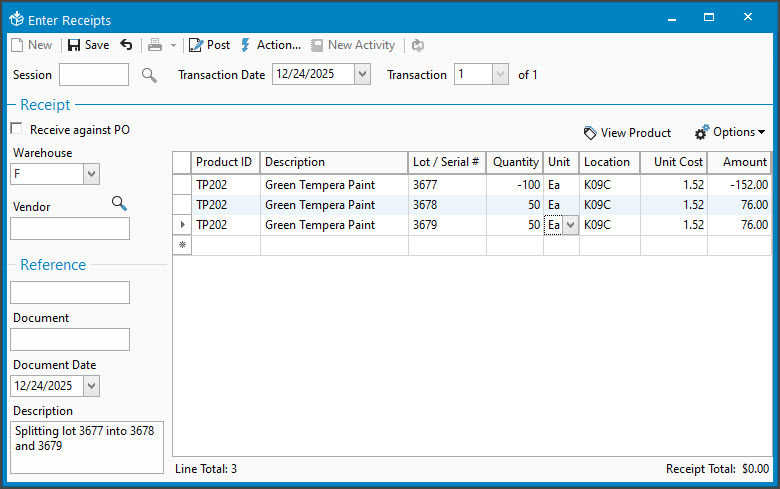
- Select Inventory menu > Enter Receipts.
- Click New to create a new session.
- Select the appropriate Warehouse for this transaction.
- Enter any optional header information, such as Vendor, Reference, Receiving Document, or Description.
- Add the lot numbered product being split by typing the Product ID and pressing tab key, or by selecting it from the lookup.
- In Lot / Serial #, enter the lot number being removed. This must match the original lot number.
- Enter a negative Quantity to remove the lot quantity.
- If bin locations are used, enter the Location the lot is being removed from.
- Verify the Unit Cost matches the original lot exactly.
- Add the same product again to the session to create the new lot(s).
- Enter the new Lot / Serial #, along with Expiration Date, Reference, or Specification, if applicable.
- Use Options > Show Columns to display any additional fields needed.
- Enter a positive Quantity for the new lot.
- If using bin locations, enter the Location where the new lot will be stocked.
- Verify the Unit Cost matches the cost of the lot being removed.
- If you are not adding the full quantity back to a single lot, confirm the Amount matches the amount being removed.
- Repeat steps 10–14 for each additional new lot.
- Confirm the Receipt Total in the bottom-right corner is $0.00.
- Save the session.
- Post when ready. This removes the original lot quantity and adds the new lot(s) to inventory.
Break One Product Down to Add Quantity to Other Items
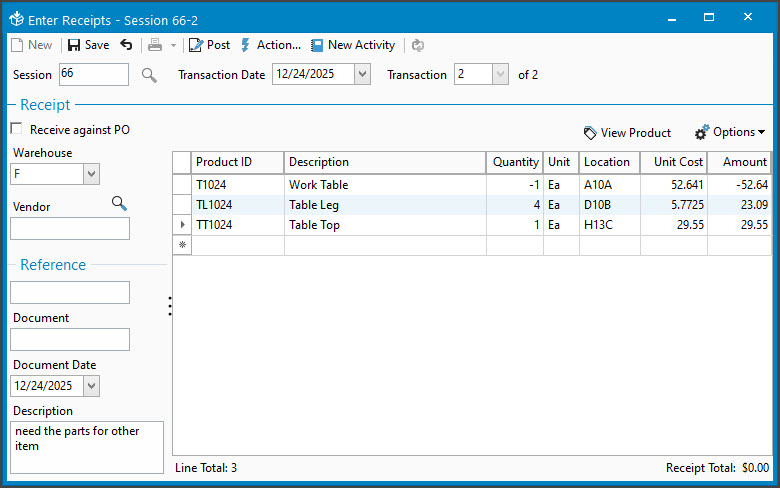
- Follow the same steps as above through step 9.
- Ignore step 6 if the product is not lot-controlled and step 8 when not using locations..
- Enter a negative Quantity for the product being removed.
- If listed in a bin, enter the Location you are removing the lot number from.
- If using bin locations, enter the Location the product is being removed from.
- Verify the Unit Cost matches the current unit cost exactly.
- Add the product(s) being added to inventory.
- If the added products are stocked in a different warehouse, Save the session and select Action > + Add Transaction.
Repeat as needed when breaking products into multiple warehouses.
- If the added products are stocked in a different warehouse, Save the session and select Action > + Add Transaction.
- For lot or serial numbered items, enter the appropriate Lot / Serial #.
- Enter a positive Quantity for each product being added.
- Verify the Unit Cost or Amount matches the values of the negative line.
- When allocating cost across multiple products, you’ll need to manually calculate the distribution.
- When breaking down into multiple products, continue doing steps 4-6 until all products being added to stock are listed.
- Repeat steps 5–9 until all resulting products are listed.
- Save the session.
- Preview the Inventory Receipt register to confirm the session nets to $0.00.
- Post when ready. This removes the original product and adds the newly created items to inventory.